 Bliss HQ
Document requests
Ask once. Bliss HQ does the chasing.
Send a tracked list of what you need, give clients a simple upload link and let reminders run until every item is in.
No client login needed to upload.
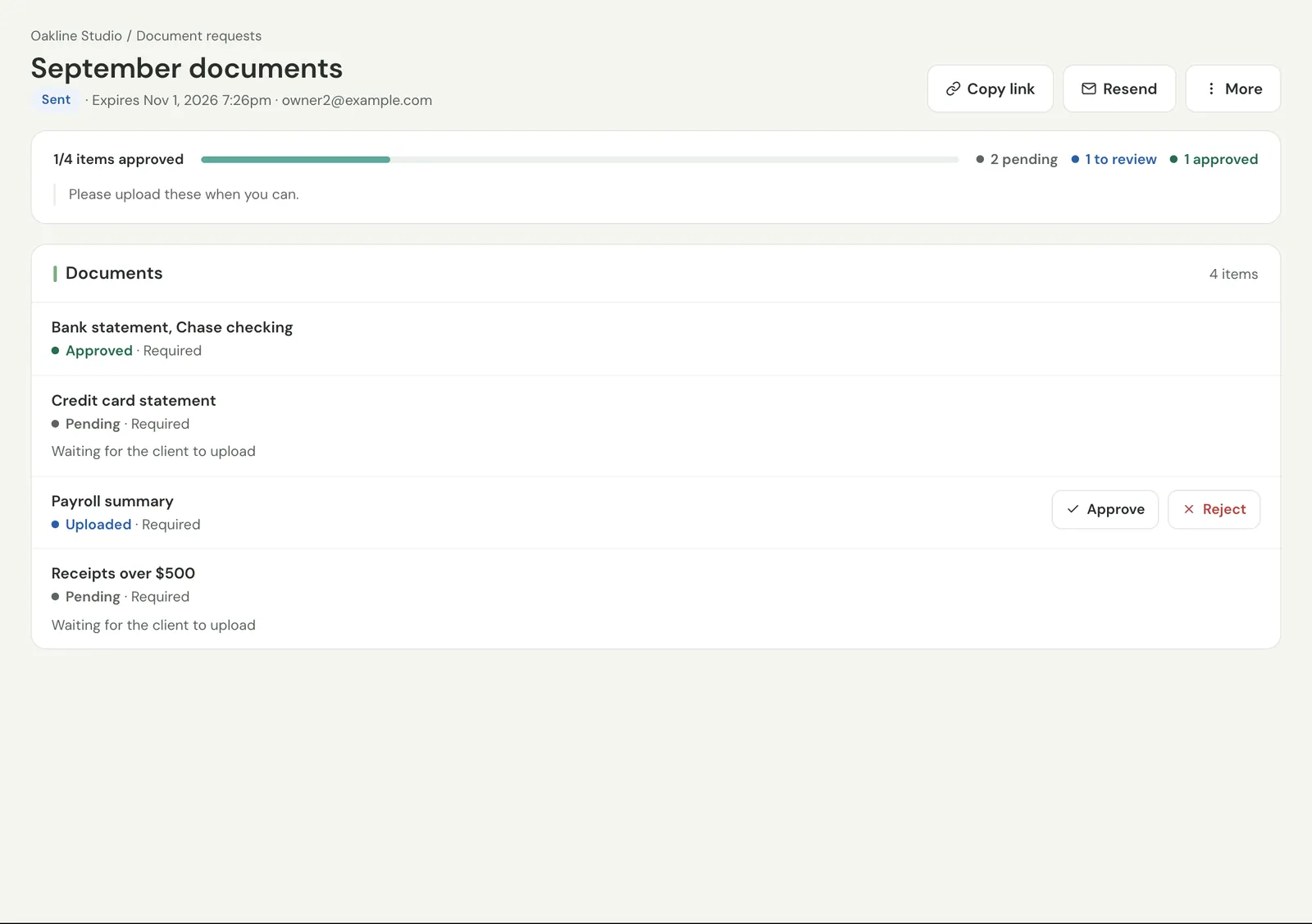
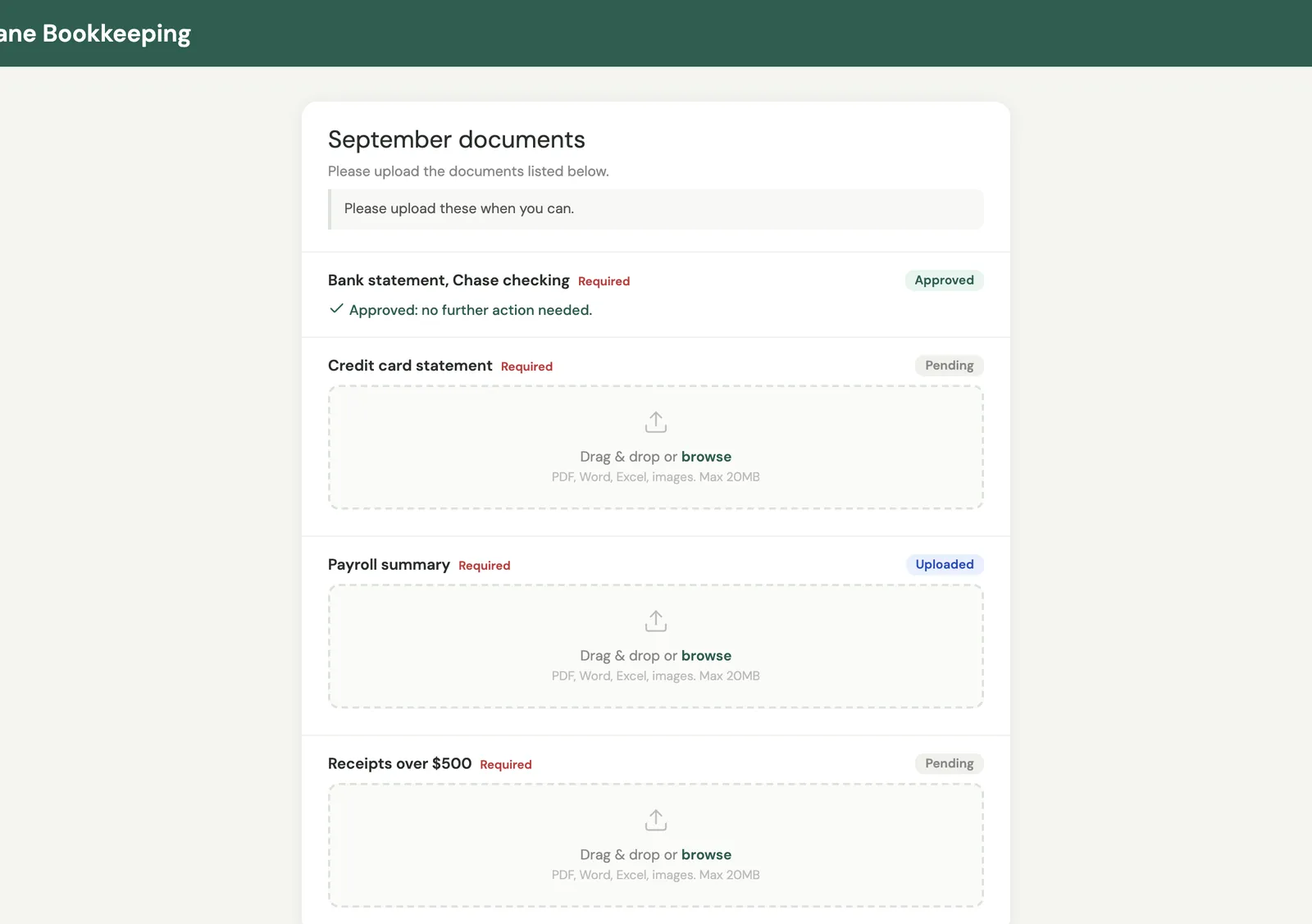
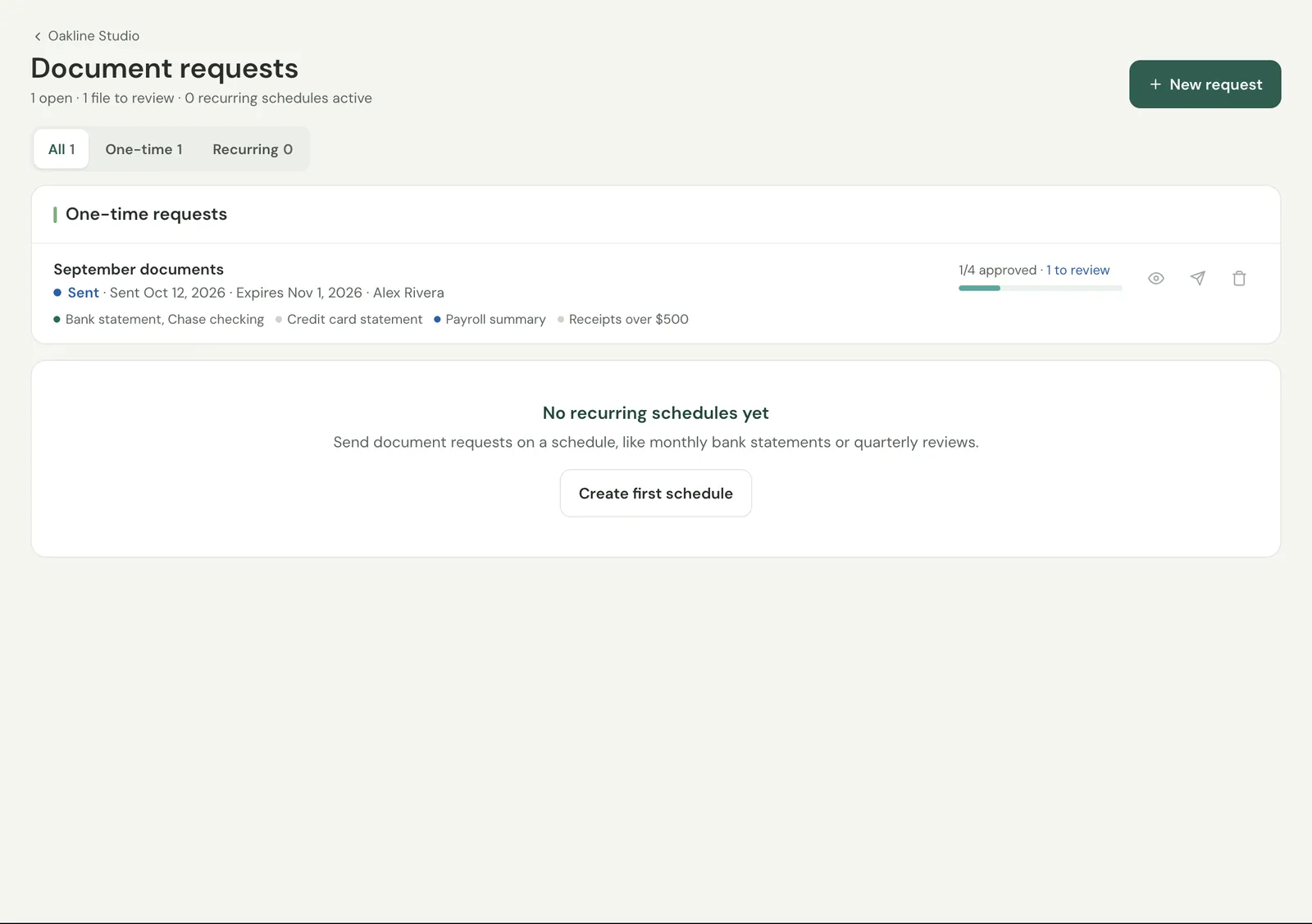
Track each item: approved, uploaded and still waiting
What you get
Every document, tracked from request to folder.
Item-by-item tracking
See exactly which items are in and which are missing.
Simple upload link
Clients upload from any device without an account.
Automatic reminders
Branded reminders on day 3 and day 7, then an alert to whoever sent it on day 14.
Review and approve
Approved files move to the client's Documents tab, filed by period.
Smart retention
Keep files, or mark them short-term so they clear after 12 months.
Bulk download
Download a period or a folder as one ZIP.
Your own storage
Keep every client's files in your firm's Google Drive or Dropbox, in a folder for each client.
Email attachments filed
Attachments from client emails in your connected Gmail can be filed straight to their documents.
Scan from a phone
Clients scan paper documents into a clean PDF with the Bliss Snap app.
Remind any time
Send a reminder yourself with one click, listing only what is still missing.
A closer look
How document requests works in Bliss HQ.
Requests that chase themselves
Two reminders, then a heads-up for you.
Pick the items, who it goes to, and how long the link stays open, from 1 to 90 days (14 by default). If anything is still missing, the client gets a reminder on day 3 and a firmer one on day 7. On day 14, the person at your firm who sent the request gets an alert.
- Start from a ready-made template or build your own list
- Send to any contact, portal login or the client's main email
- Recurring requests go out weekly, monthly, quarterly or yearly
- Need it early? Send the next recurring request now
- A job step waiting on the request ticks itself when it is complete
Upload without an account
One link, any device, no password.
Every request has its own upload page in your branding, with each item listed on its own line. Clients who have a portal login get a sign-in link that opens the same page.
- PDFs, photos, Word, Excel, CSV and text files up to 20 MB each
- Whoever sent the request is told by email and in Bliss HQ on every upload
- Slack alerts show the file name and which item it was for
- Reject a file with a note and the client is asked to send it again
- Set each item's folder and short-term flag when you ask
The Documents workspace
Filed by folder and period, without the sorting.
Approved files go to the client's Documents tab, into one of seven folders such as Bank & card statements or Tax returns & notices. The month or quarter is guessed from the file and request names. Anything a client sends on their own waits in a review queue until you file it or decline it.
- Move, tag, mark short-term or delete many files at once
- Tag files, starting with a ready-made Permanent file tag
- Each file keeps its own activity history
- ZIP downloads keep the folders, and duplicate names get numbered
- Share a file with the whole client or chosen people, with an email
Your storage, your inbox
Files live in your Drive or Dropbox.
Connect Google Drive or Dropbox and Bliss HQ keeps a Bliss HQ folder there, with a folder for each client. Each client folder holds a To review folder, and filed documents are sorted by folder and year. Every file is checked byte for byte before Bliss HQ deletes its own copy.
- When you file or move a document in Bliss HQ, your storage follows
- Renames, moves and deletes made in Drive or Dropbox come back too
- Attachments from client emails in your connected Gmail wait for review
- Logos, signature images and files over 20 MB are skipped
- A file you declined once will not keep coming back
How it works
Three steps, then it runs.
Request
List the items you need and how long the link stays open.
Remind
Bliss HQ sends the reminders for you.
File
Approve each file and it lands in the right folder.
Part of one system
Connected to the rest of your firm.
Requests appear in the client portal and on the Monthly close board, and onboarding steps can create them for you.
Questions about document requests
How long are files kept?
You choose. Keep them, or mark them short-term, like bank statements, and they clear after 12 months.
Can clients send files without being asked?
Yes, with Send us something in their portal.
Can I download everything at once?
Yes. Select files or a folder and download a ZIP.
What if a client uploads the wrong file?
Reject that item with a note. The client gets an email asking for it again, and the request reopens if it was already complete.
Who gets the reminders?
The people you sent the request to get the reminders on day 3 and day 7. On day 14, the person at your firm who sent it gets an alert listing what is still missing.
Can a client send several files at once?
Yes. Send us something takes up to 10 files at a time, each up to 20 MB, with an optional note. Bliss HQ suggests the folder and month.
Do I have to use Google Drive or Dropbox?
No. Files are kept in Bliss HQ by default. Connecting Drive or Dropbox is optional, under Firm Settings, Integrations.
Can I limit which requests a client contact sees?
Yes. You can set a portal login to see only the document requests you grant it.
Try document requests on your own clients.
30 days free, no card. Every feature included, with unlimited staff.