 Bliss HQ
Client portal
One branded place for everything you need from a client.
Clients sign in with a magic link and see one to-do list: documents to upload, questions to answer, proposals to sign and invoices to review.
Your logo, your colors, your favicon.
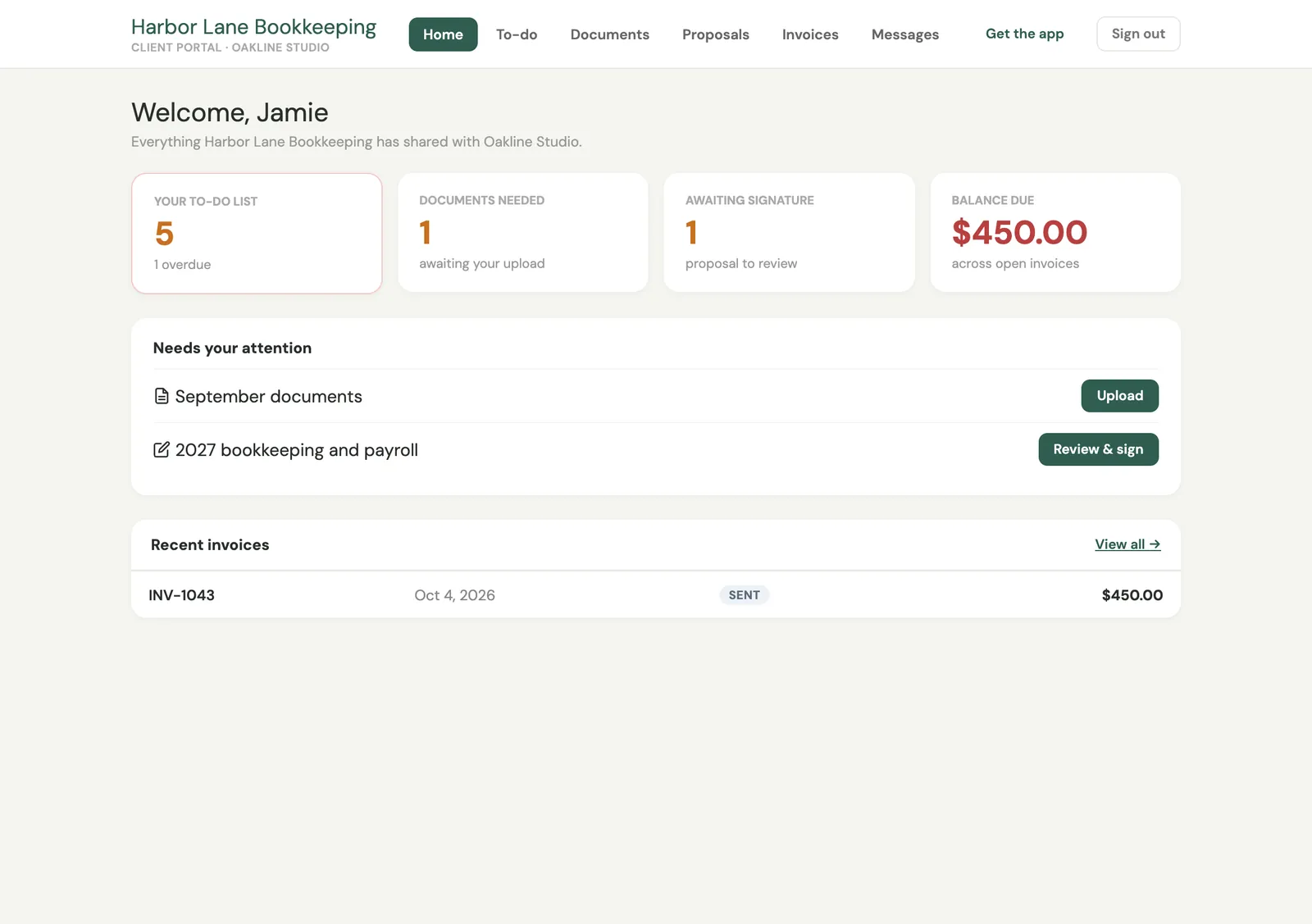
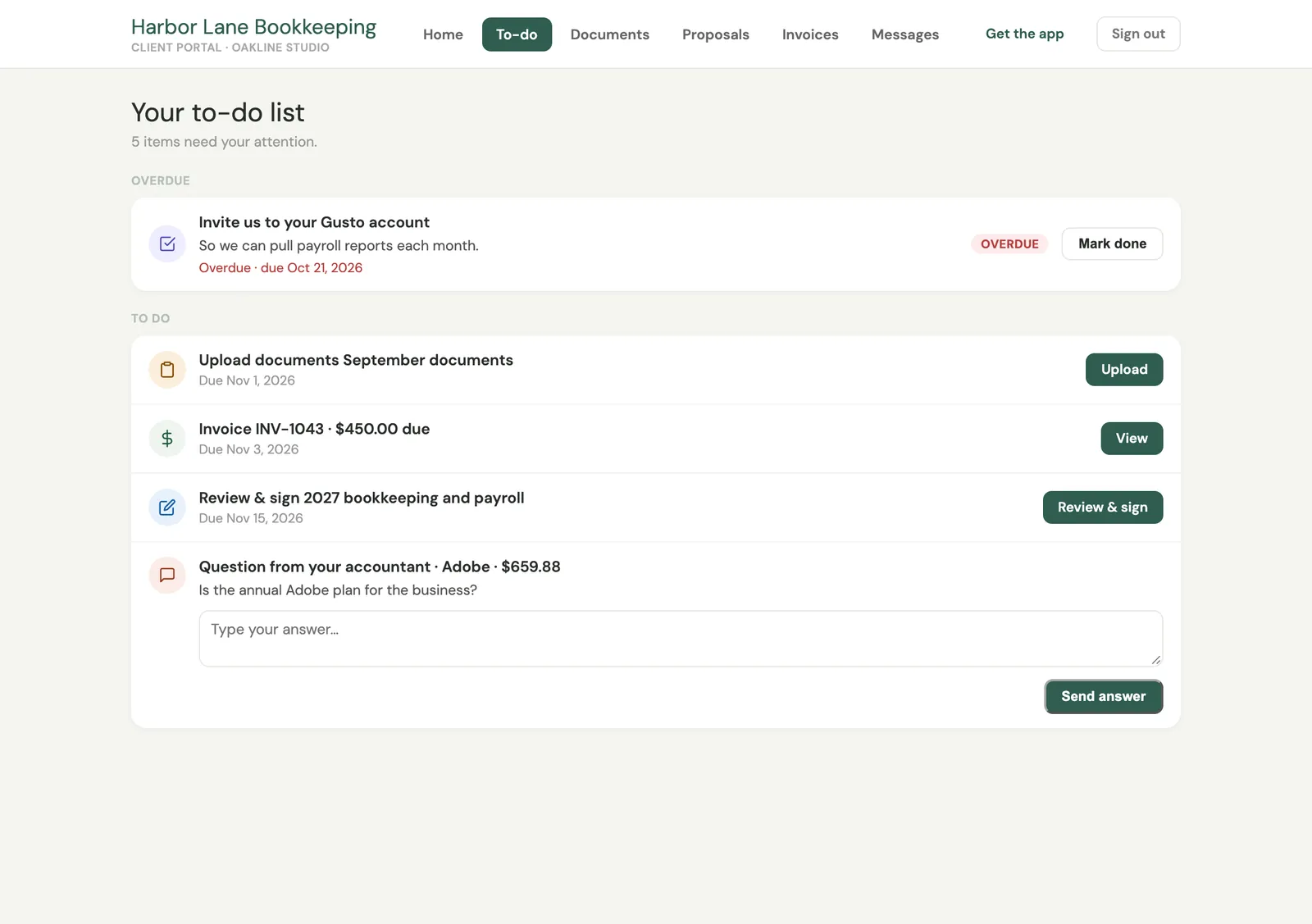
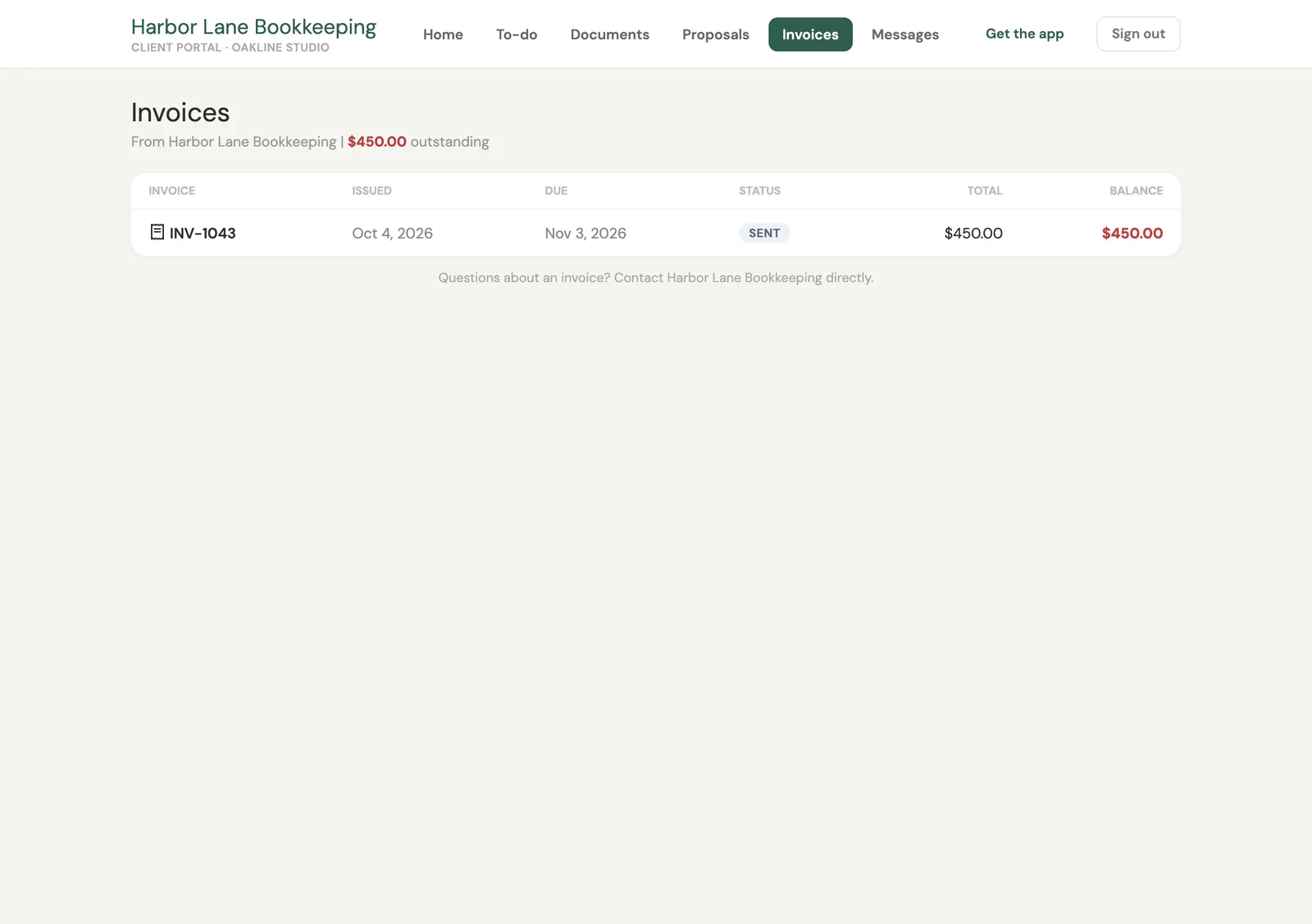
Your client's home: what they owe you, documents needed and invoices
What you get
Clients always know what you need.
One to-do list
Documents, questions, proposals and invoices in one place.
Magic-link sign in
No password to forget. A secure link signs them straight in.
White-label branding
Your logo and colors on the portal and every email.
Weekly digest
A short weekly email of open proposals, invoices, tasks and questions.
Send us something
Clients can upload a file without waiting to be asked.
See what they see
Open a read-only preview of any client's portal.
Messages with your firm
A private conversation with your team, with photos, answered from the client's page in Bliss HQ.
Snap a receipt
Clients photograph receipts and they are filed, read by Bliss AI and ready for the books.
On their iPhone
The Bliss Snap app puts the portal on your clients' phones, in your firm's name, with notifications.
Files you share
Share reports and documents with everyone at the client, or just the people you choose.
A closer look
How the client portal works in Bliss HQ.
Sign-in that works
No passwords to forget, no accounts to chase.
Clients type their email and get a one-time sign-in link that works for 15 minutes. Your team can also make a link from the client record and have Bliss HQ email it, or copy it into your own email. That link works once, for 7 days.
- Team links can open straight to tasks, documents, proposals or invoices
- Keep me signed in remembers a device for 180 days
- Buttons in your emails can sign clients straight in, once, for 7 days
- Too many wrong passwords locks that login for 15 minutes
- Client of two firms? Each firm's portal sends its own link
One to-do list
Everything you need from them, sorted by due date.
The to-do list gathers open document requests, onboarding questionnaires, proposals to sign, unpaid invoices, coding questions and any task you add by hand. Overdue items go to the top, then whatever is due soonest.
- Clients answer coding questions in the list, with no email thread
- The person who asked is told as soon as the answer comes in
- Add your own task with a due date, then nudge it with Remind
- A weekly digest of anything else still open, at most once in six days
- Limit a contact to only the document requests you grant them
Messages and preview
Talk to clients without leaving their record.
Each client has one private thread with your firm, on the web and in the Bliss Snap app. Your team replies from the Messages tab on the client's page. A read-only preview shows exactly what the client sees.
- Clients can attach photos, PDFs, Word, Excel or text files up to 20 MB
- Your team gets a Bliss HQ notification, and a Slack alert if connected
- A burst of replies sends the client one email, not one per message
- Preview changes nothing, and each preview is logged in your audit trail
Your brand, their phone
Your firm's name on their home screen.
Set your logo, favicon, three brand colors and the sign-in page heading once in Firm Settings. Clients can add the portal to their home screen on iPhone or Android, where it shows your logo and a short version of your name, or they can use the Bliss Snap iPhone app.
- No favicon yet? Clients see your initial on your brand color
- A Get the app page shows clients how to install on iPhone and Android
- Bliss Snap has five tabs: Home, To-do, Snap, Messages and More
- Clients sign in to the app with a 6-digit code sent by email
- Emails you send a client also show up as phone notifications
How it works
Three steps, then it runs.
Brand it
Add your logo and colors once in Firm Settings.
Invite clients
Send a magic link from the client record.
Let it work
Requests, questions and invoices appear for the client as you create them.
Part of one system
Connected to the rest of your firm.
Everything your firm asks for, from onboarding to review questions to invoices, shows up in the same portal automatically.
Questions about the client portal
Do clients need a password?
No. They can sign in with a magic link. A password is optional.
Can it carry my brand?
Yes. Your logo, colors and favicon appear on the portal and emails.
Can I see what my client sees?
Yes. Open a read-only preview from the client record.
Is there a mobile app?
Yes. Bliss Snap for iPhone puts the portal on your clients' phones in your firm's name and colors. They can also add the portal to their home screen on any phone.
How long does a sign-in link last?
A link the client asks for works once and expires in 15 minutes. A link your team sends from the client record works once, for 7 days.
Can several people at one client have logins?
Yes. Invite each person by email. Each one can see all document requests or only the ones you grant, and you can remove anyone's access at any time.
Where do coding questions come from?
Your team can ask from the client's page, the month-end Review page or a books cleanup. The answer goes back to the person who asked, and cleanup answers are copied straight into the cleanup.
Will my team know when a client messages or uploads?
Yes. Your team gets a notification in Bliss HQ, and you can send the same alerts to Slack.
Can a client work with more than one firm?
Yes. If the same email is a client of two firms on Bliss HQ, each firm's portal stays separate and sends its own sign-in links.
Try the client portal on your own clients.
30 days free, no card. Every feature included, with unlimited staff.